GitHub Copilot CLI बनाम VS Code: 2026 कार्यप्रवाह तुलना
Table of Contents
GitHub Copilot CLI और VS Code में Copilot coding work के लिए अलग entry points देते हैं। CLI shell और task prompt से शुरू होता है। VS Code editor context, suggestions, chat और agent workflows जोड़ता है। दोनों का मूल्यांकन एक ही account और repository policy में करें।
चुनाव एक-दूसरे को बाहर नहीं करता। GitHub Copilot CLI और VS Code का connection document करता है। दोनों को स्पष्ट रूप से जोड़ने पर terminal task editor selection और visual review से लाभ लेता है।
मुख्य बातें
- Terminal-driven tasks के लिए Copilot CLI इस्तेमाल करें और supported programmatic invocation चलाएँ।
- Editor-centered work के लिए VS Code में Copilot इस्तेमाल करें, inline सहायता और Agent mode सहित।
- CLI को VS Code से जोड़ें जब terminal prompts को editor context और diffs चाहिए।
- Account, model और policy settings जाँचें, एक ही product family में भी।
Scope और date: Official documentation 10 October 2026 को जाँची गई। यह तुलना standalone copilot CLI और VS Code में Copilot की है, पुराने gh copilot extension या GitHub issue को दिए cloud agent की नहीं। Testable repository और permitted Copilot access चाहिए। Trial के लिए एक घंटा रखें।
काम करने के तीन तरीके
| Workflow | मुख्य interaction | उपयुक्त trial task |
|---|---|---|
| Standalone CLI | Terminal prompt और command output | Reproduced test failure समझाकर ठीक करना |
| VS Code integration | Editor selection, chat, suggestions और diffs | Selected function और उसके tests बदलना |
| CLI connected to VS Code | Editor context और review वाला terminal task | Shell से जाँच कर patch visually inspect करना |
Hybrid भी CLI session रहता है। Integrated terminal में चलाने से वह अपने-आप editor की native Agent-mode conversation नहीं बनता। Active session और connection जाँचें।
CLI क्या देता है
copilot
Current standalone command terminal agent शुरू करता है। GitHub का Copilot CLI overview interactive और programmatic use, planning और tool permissions बताता है। Terminal output मुख्य evidence हो तो इसे वहीं जाँचें।
अच्छे पहले task में concrete failure होता है। Failing command, expected behavior और unrelated refactoring पर रोक दें। Files बदलने से पहले issue reproduce करने को कहें और final explanation को test output से मिलाएँ।
Automation के लिए स्पष्ट सीमाएँ चाहिए। Current invocation और controls के लिए CLI usage guides देखें। Unattended jobs से पहले allowed tools, time limits और output handling तय करें। Interactive permission को pipeline की blanket authorization न बनाएँ।
Sandbox trial boundary बदलता है। GitHub filesystem, network और system restrictions के लिए local sandbox और isolated execution के लिए cloud sandbox document करता है। Real repository बदलने से पहले harmless fixture से sandbox, network access और write scope जाँचें।
VS Code क्या जोड़ता है
IDE में Copilot experience में suggestions, chat और agentic tasks हैं। IDE overview इन्हें अलग करता है। जब आप primary editor रहें, inline assistance उपयोगी है। कई files बदलने वाले bounded outcome के लिए Agent mode उपयोगी है।
Agent mode edits और commands को बार-बार चलाता है। Agent-mode guide chat में Agent चुनना, changes review करना और MCP से tools बढ़ाना बताता है। Availability और command approval configuration तथा administration पर भी निर्भर हैं।
Context transfer को जानबूझकर जाँचें। Function चुनकर error handling की explanation माँगें। फिर independent test के साथ छोटा change माँगें। पड़ोसी files देने या agent की assumption सुधारने की जरूरत दर्ज करें।
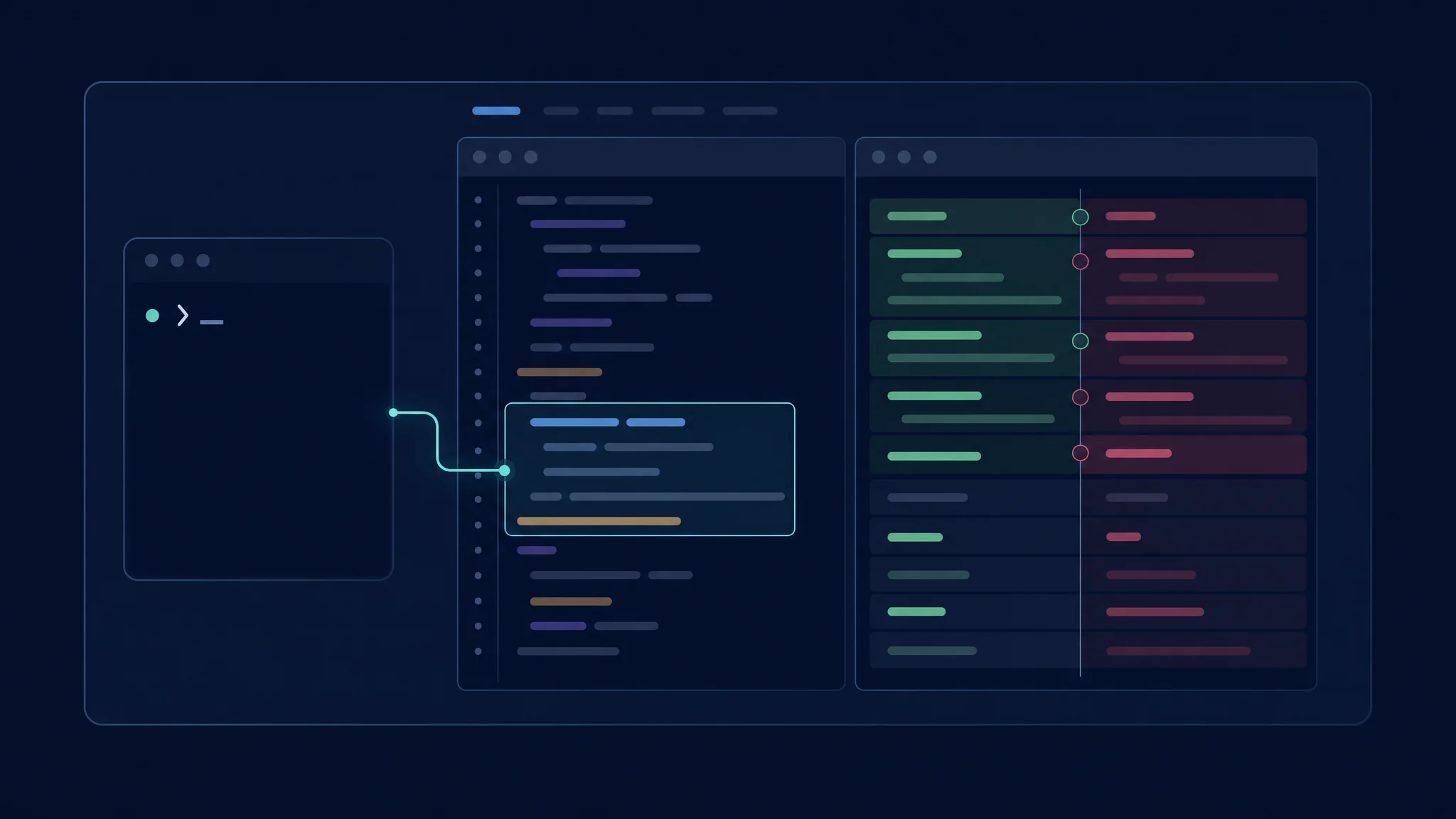
Connected CLI session terminal input को editor review से जोड़ता है
दोनों interfaces जोड़ें
/ide
Interactive Copilot CLI session में /ide इस्तेमाल करें VS Code connection देखने या बदलने के लिए।
Connection guide
trusted workspace match, editor selection sharing और proposed file edits को diffs के रूप में दिखाना बताता है।
Automatic connection workspace match पर निर्भर है। Repository name मिलने भर से local CLI remote Codespace से नहीं जुड़ता। Corresponding environment में CLI चलाएँ। Broad edit authorization proposed-edit approval को भी bypass करती है। Expected prompts गायब हों तो permissions जाँचें।
CLI transcripts VS Code के Sessions view में दिखते हैं, Resume in Terminal से जारी रखे जा सकते हैं। Terminal workflow रहता है, पर conversation native editor-agent session नहीं बनती।
| Connect करने से पहले | जाँच |
|---|---|
| Workspace | Intended folder खुला और trusted है |
| Execution location | CLI और editor integration एक ही environment बताते हैं |
| Selection | Highlighted code वर्तमान request से मेल खाता है |
| Permissions | जरूरत होने पर proposed-edit review enabled है |
| Session | Intended conversation जारी है |
Models, billing और policy
उपलब्ध होने पर दोनों interface trials में वही selected model रखें। विकल्प अलग हों तो mismatch दर्ज करें। अलग model, context या tool set experiment बदल देता है।
Account में current usage accounting जाँचें। GitHub Agent-mode documentation AI Credits बताता है। Billing arrangement जाँचे बिना पुराने premium-request estimates न लगाएँ। CLI prompt और editor task अपने-आप समान work unit नहीं हैं।
Organization access आवश्यक है। Feature न हो तो extension reinstall से पहले policy जाँचें। दोनों surfaces के approved tools और integrations लिखें। Provider login हर repository बदलने या हर external service से संपर्क की authority नहीं देता।
Paired trial चलाएँ
एक ही starting revision की दो copies तैयार करें। Matching instructions और acceptance tests रखें। पहला प्रयास standalone CLI और दूसरा VS Code Agent mode में करें। Mixed interaction आपके सामान्य काम के अनुकूल हो तो connected CLI का तीसरा प्रयास करें।
| Measure | दर्ज करने का कारण |
|---|---|
| Supplied context | छिपा manual setup effort दिखाता है |
| Correctness | Plausible code और verified fix अलग करता है |
| Approval steps | समान policy में supervision burden दिखाता है |
| Review time | पूरे patch को समझने का समय मापता है |
| Manual repairs | Agent के बाद बचा काम दर्ज करता है |
| Usage | Cost को accepted outcomes से जोड़ता है |
Recovery को test में रखें। एक proposed approach अस्वीकार कर कारण बताएँ। देखें कि अगला प्रयास useful work बचाता और correction मानता है। यह single uninterrupted demo से daily usability बेहतर दिखाता है।
Troubleshooting और अगले कदम
CLI गलत editor window से जुड़ जाए, /ide देखें और intended workspace चुनें। Visual approval बंद हो तो broad edit permissions जाँचें। Agent mode न हो तो extension state और organization policy जाँचें।
Standalone CLI चुनें जब shell context और repeatable invocation प्रमुख हों। VS Code चुनें जब selection context, inline work और graphical review प्रमुख हों। Connected CLI चुनें जब terminal entry और editor inspection साथ अच्छे चलें।
Cross-vendor तुलना के लिए CLI master comparison या GUI master comparison पढ़ें। इन्हें इसी product family के interface trial से अलग रखें।
Related Posts