
Codex CLI बनाम Desktop: 2026 कार्यप्रवाह तुलना
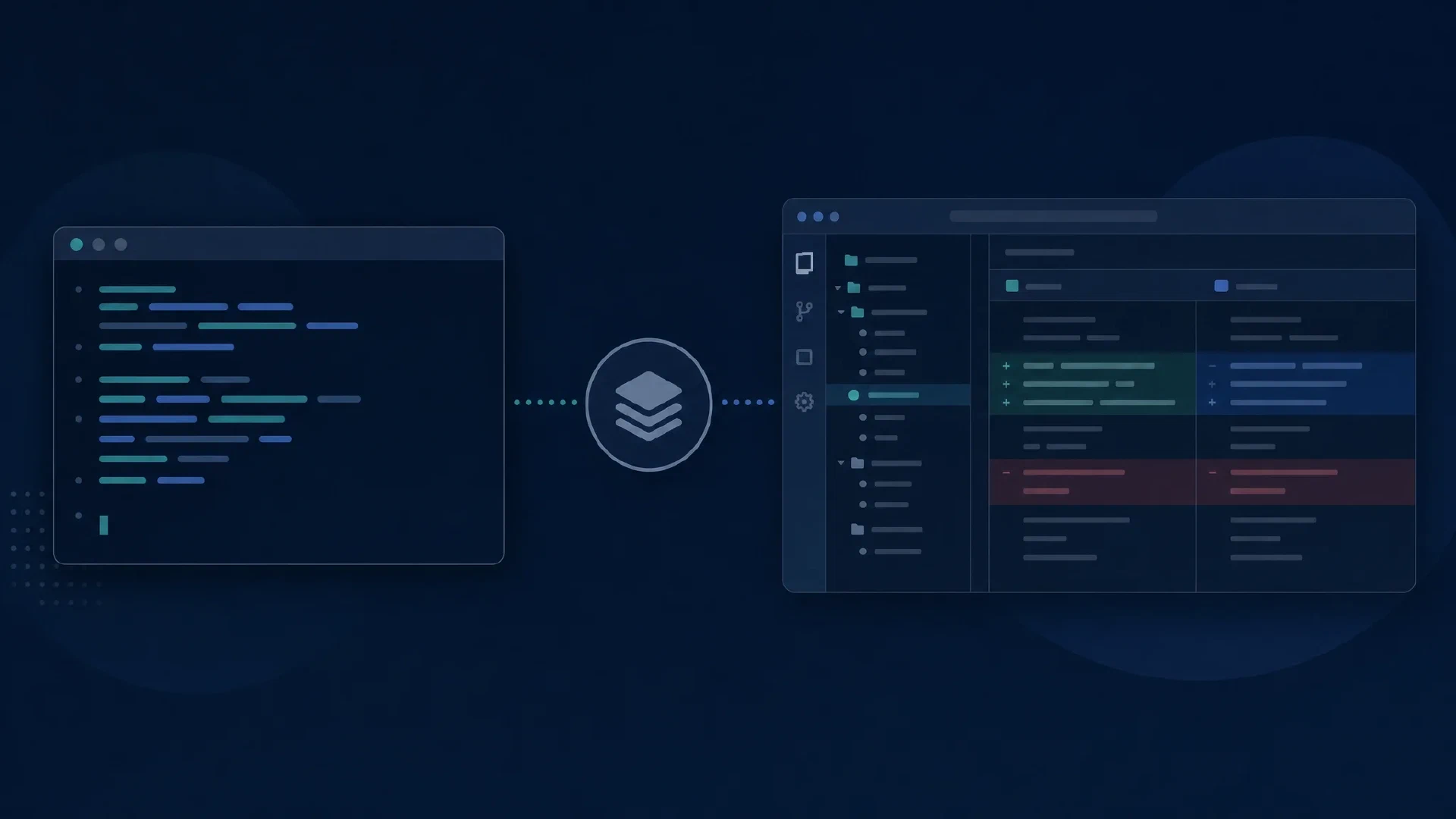
Table of Contents
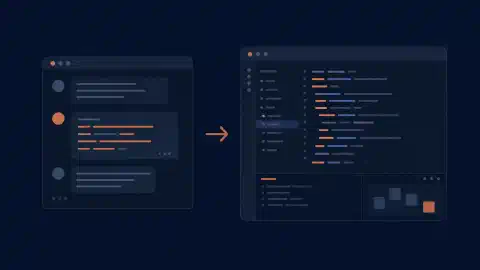
Codex CLI स्पष्ट commands और scriptable runs वाले shell workflow के लिए उपयुक्त है। Codex desktop projects, conversations, visual outputs और review panels के आसपास व्यवस्थित काम के लिए उपयुक्त है। अपनी supervision पद्धति के अनुसार interface चुनें। Model, repository और execution policy समान रखें।
नाम संबंधी नोट: OpenAI का पुराना Codex app documentation अब ChatGPT desktop app documentation पर redirect होता है। यह guide application के coding workflow के लिए “Codex desktop” नाम उपयोग करती है। Repository access के बिना सामान्य chat को coding agent न मानें।
मुख्य बातें
- Shell composition और repeatable programmatic runs के लिए CLI उपयोग करें।
- Project organization, visual review और scheduled-task management के लिए desktop उपयोग करें।
- Execution location स्पष्ट रखें, खासकर remote connection के साथ।
- Interface बेहतर code की गारंटी नहीं देता और अलग inference allowance नहीं बनाता।
दायरा और तारीख: Official documentation की जाँच 10 अक्टूबर 2026 को हुई। Recommendations workflow से संबंधित हैं, measured model performance से नहीं। Repository, working tests और suitable account access आवश्यक हैं। छोटे cross-interface trial के लिए एक घंटा रखें।
Workflow की तुलना
| आवश्यकता | Codex CLI | Codex desktop |
|---|---|---|
| Repository work शुरू करना | Shell directory से launch करें | Project और execution environment चुनें |
| Scripted task दोहराना | codex exec | Prompts तैयार करें और outputs को visual रूप से देखें |
| कई tasks देखना | Terminal/session workflow | Project और chat organization |
| Changes review करना | Terminal commands और review controls | Diff और review panels |
| Schedules manage करना | Script के आसपास external job runner | Scheduled-task management interface |
| Changes isolate करना | Separate checkout/worktree चुनें | Integrated worktree workflow |
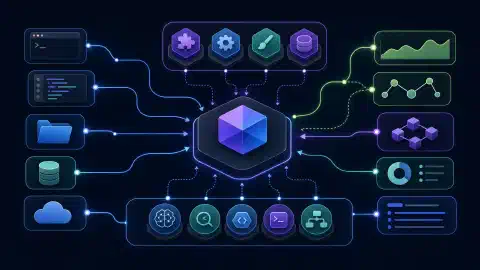
Shared agent foundations महत्वपूर्ण हैं। OpenAI Codex as a platform में CLI, app और IDE extension को agent runtime के interfaces बताता है। Runtime state, tools और policy संभालता है। Interface का अंतर दिए गए context और result inspection को प्रभावित करता है।
CLI कहाँ उपयुक्त है
codex
Intended repository से launch करें। CLI guide interactive inspection, editing, commands और review document करती है। Terminal sessions और command output पर आधारित workflow में यह route उपयोग करें।
codex exec "Identify the documented test command. Do not modify files."
Bounded scripted task के लिए codex exec उपयोग करें।
Non-interactive reference
progress और final output समझाती है। Investigation में read-only execution policy रखें। No edits माँगना instruction है, enforced filesystem boundary नहीं।
Production script को अधिक व्यवस्था चाहिए। Credentials, repository selection, timeout, permissions, output storage और failure handling तय करें। Automated changes से पहले reviewer के लिए evidence रखें। Execution contract को version control में रखें।
Desktop कहाँ उपयुक्त है
Desktop related work को एक workspace में संगठित करता है। Current OpenAI app documentation project switching, file inspection, connected tools और long-running tasks बताता है। Implementation, rendered artifact और review के बीच context दोबारा बनाए बिना जाएँ।
Review एक ठोस अंतर है। Code-review documentation descriptions, changed files, comments और checks दिखाने की प्रक्रिया बताता है। Patch जाँचने के लिए इन views का उपयोग करें। Diff के बाहर behavior के लिए independent evidence चाहिए।
Visual task पर desktop आज़माएँ। Screenshot और स्पष्ट viewport requirements के साथ छोटा layout fix माँगें। Context attach, result inspect और correction माँगने का effort तुलना करें। Human review time को model response time से अलग मापें।
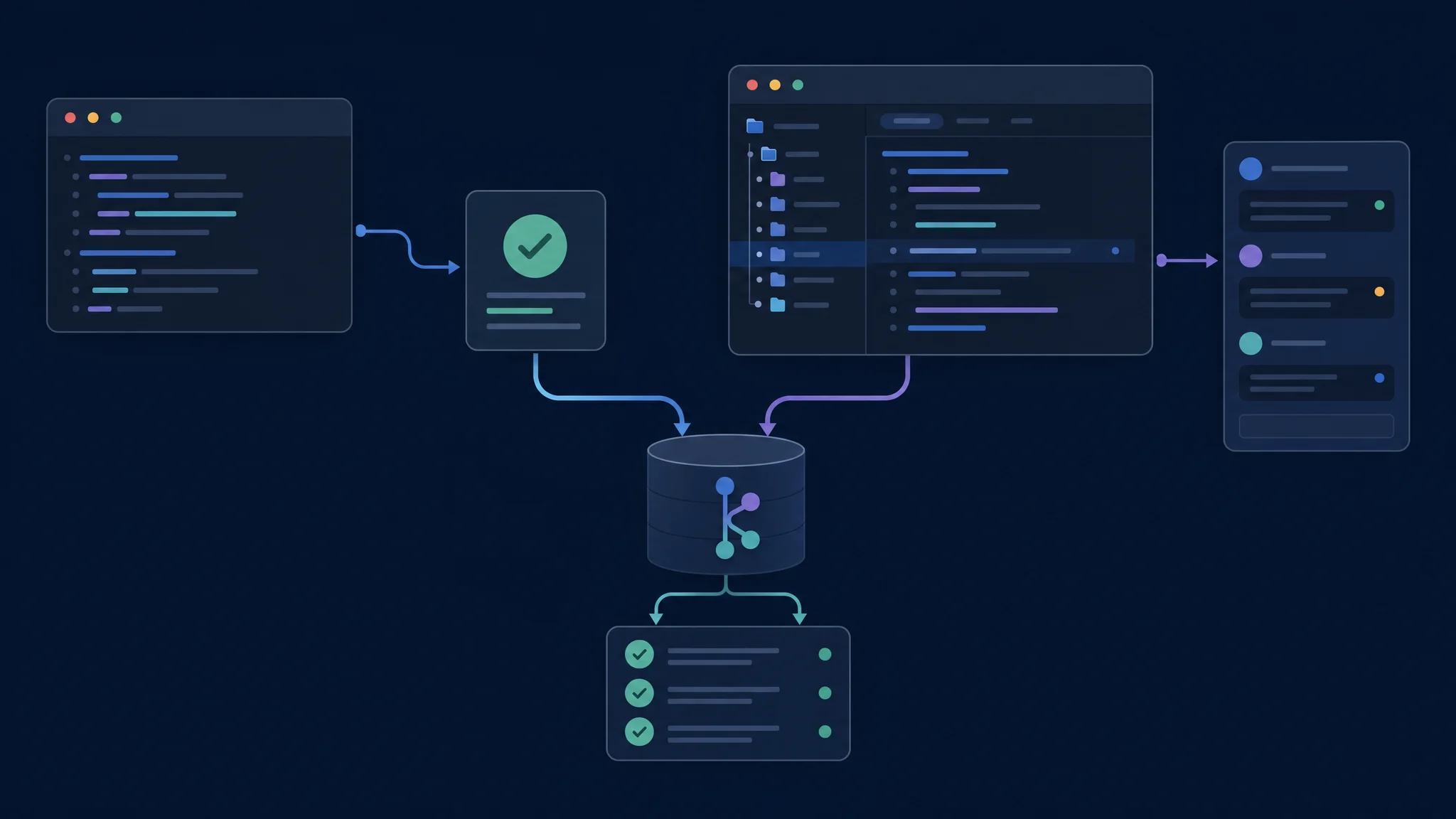
Interfaces की तुलना में repository और acceptance criteria समान रखें
Worktree और Execution Location
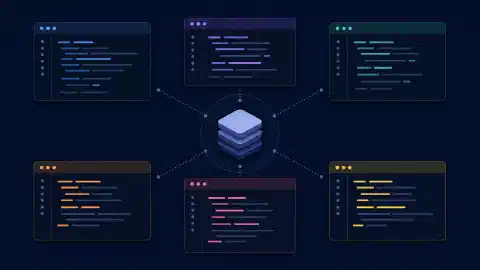
Worktree Git repository का दूसरा checkout है। OpenAI का worktree guide isolated parallel chats और local checkout तथा managed worktree के बीच work move करना बताता है। Files और commands project host करने वाले computer या development environment पर रहते हैं।
Isolation result merge नहीं करता। Diff review करें, checks चलाएँ और intended branch में changes लाने का तरीका तय करें। Fresh checkout में dependencies, ignored files और external services की भी जाँच करें।
| Task से पहले | पुष्टि करें |
|---|---|
| Repository | सही project और base revision |
| Checkout | Existing directory या isolated worktree |
| Execution host | Files और tools वाला computer |
| Environment | Runtime, dependencies और test services |
| Permissions | Allowed file writes और network access |
Comparison में समान environment रखें। Configured workstation का desktop task और minimal container का CLI task केवल interface preference नहीं जाँचते। Client को दोष देने से पहले environment differences लिखें।
Scheduling और Permissions
Desktop schedule management देता है। OpenAI का
scheduled-task guide
management interface और CLI अलग करता है। Local scheduled work के लिए computer और application उपलब्ध रहने चाहिए। codex exec के आसपास shell scheduler अलग operational arrangement है।
Permissions execution environment पर लागू हैं। Effective profile जाँचें। Terminal या graphical prompt से safety न मानें। Permissions reference filesystem और network boundaries बताता है। GUI approval और sandbox policy अलग समस्याएँ हल करते हैं।
Account access अलग check माँगता है। हर interface में active sign-in, available model और usage display confirm करें। दूसरा client खोलने को independent allowance न मानें। Per-task cost तुलना से पहले billing route लिखें।
एक घंटे का Trial
- Independent acceptance test और clean baseline के साथ bounded change तैयार करें।
- Matching model और policy settings के साथ अलग checkouts से हर interface में चलाएँ।
- पहले patch की जाँच के बाद एक correction माँगें।
- Final diff review करें और समान verification commands चलाएँ।
- Context, output और approval में अपना effort record करें।
CLI चुनें जब shell tools से task repeat और inspect करना सरल हो। Desktop चुनें जब project organization और visual review supervision effort घटाएँ। अलग workflow भागों के लिए दोनों installed रखना ठीक है।
Trial record को result के साथ रखें। Starting revision, model, execution host, permission profile, commands और final verification output लिखें। इन fields के बिना बाद की तुलना hidden environment changes भी मिलाती है।
Troubleshooting और अगले कदम
Missing file पर environment check करें। Agent से recreate कराने से पहले project, checkout और execution host verify करें। अलग test results में runtime selection और dependency setup तुलना करें। रुके local schedule में application और computer की availability देखें।
Vendors को अलग compare करें। Terminal alternatives के लिए CLI master comparison और graphical editors तथा extensions के लिए GUI master comparison उपयोग करें। Future upgrades के लिए इस trial का model और task record रखें।
Related Posts